04 · Every button, explained
A field guide to the Copilot pane.
What each control does, where it sits, and what Microsoft calls it. Read it once, then you will never hunt again.
I built this from my own Excel for the web on 17 October 2026 and from Microsoft's current documentation, including the screen-reader guide, which is the most precise description of the pane that exists. Windows and Mac look the same with small differences in spacing. Mobile has fewer controls.
Before the pane
The button in the corner.
The round Copilot icon in the lower-right corner of the Excel window is what Microsoft calls the Dynamic Action Button; the same button appears in Word and PowerPoint. Click it, or press Alt+C, and the pane opens on the right. Some builds also show a Copilot button at the right end of the Home tab; it opens the same pane. Press F6 to move between the pane and the grid, Ctrl+F6 to get back to the grid.
Top row
The header: history, model, safety, settings.
| Control | Where | What it does |
|---|---|---|
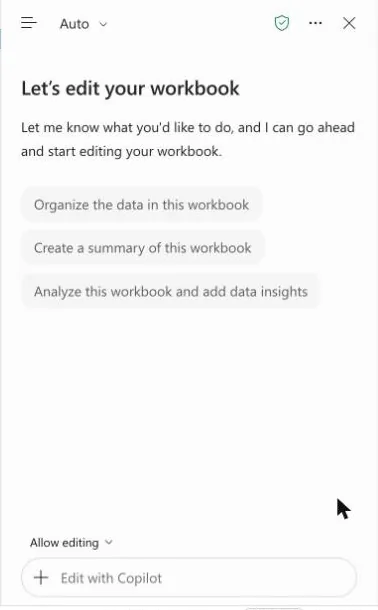
| Menu icon (three lines) | Top left | Opens your previous Copilot conversations in Excel, newest first, plus New Chat. This is where last month's prompts live. Individual chats cannot be deleted yet. |
| Model picker ("Auto") | Top left, next to the menu | Auto (default, picks the best model for the task), Claude (Anthropic), GPT (OpenAI). The choice lasts for the session only. Claude appears only if your admin has enabled Anthropic models. Leave it on Auto. |
| Shield icon | Top right | Microsoft's data-protection badge. Hover it to read which protections apply to your account. It is information, not a switch. |
| Three dots (Settings) | Top right | Send feedback, Personalization (your Excel-only preferences), Manage plugins & skills (toggle skill folders, create a custom skills folder), All Agents. |
| Close (×) | Top right | Closes the pane. Your conversation is kept in history. |
Middle
The conversation area.
| Element | What it does |
|---|---|
| Welcome text and suggestion chips | Change with the mode. In Allow editing on my workbook: "Organize the data in this workbook", "Create a summary of this workbook", "Analyze this workbook and add data insights". Click one to use it as a prompt. Fine for a first look; your own question is usually better. |
| Your prompts and Copilot's answers | Listed in order. Use the arrow keys to move through them with a screen reader. Answers can include tables, charts and formulas. |
| Citations (small superscript numbers) | Point to the cells or ranges Copilot used. Click one to see the source data. This is your fastest route to verification. |
| Plan preview and Proceed | In Plan mode, Copilot lists the steps and which ranges, sheets and formulas it will touch, and may ask a clarifying question. Nothing changes until you press Proceed. |
| Done / Undo | After an edit in Allow editing mode. Done accepts; Undo reverses the change. Ctrl+Z in the grid also works. Version history is the bigger safety net. |
| Thumbs up / down | Feedback to Microsoft on that answer. Use the thumbs down when Copilot invents something; it is the only way the product learns. |
Bottom
The prompt area: where the work happens.
| Control | Where | What it does |
|---|---|---|
| Mode selector ("Allow editing") | Just above the prompt box | Allow editing (Copilot edits the workbook directly), Plan (plan first, you approve), Chat only (answers, no changes). Shortcut Ctrl+Shift+M on Windows, Cmd+Shift+M on Mac. From the prompt box, Shift+Tab reaches it. |
| Plus sign (Add work content) | Left end of the prompt box | Add content (reference other files or work content), Upload images and files, Attach cloud files (OneDrive, SharePoint), Create workbook rules (becomes Go to workbook rules once the .Rules sheet exists), Choose plugins and skills, Change data sources. |
| Prompt box ("Edit with Copilot") | Bottom of the pane | Type here. The placeholder text follows the mode. Press Enter to send. |
| / in the prompt | Inside the prompt box | Opens a picker for files, people and meetings, the same slash I used in Copilot Chat on Friday. |
| @ in the prompt | Inside the prompt box | Mentions a skill, for example @clean-data or a custom skill of your own. Works even if the skill is switched off in the dialog. |
| Send (arrow) and Stop | Right end of the prompt box | Send runs the prompt. While Copilot works, the same spot shows Stop; press it to stop a long-running edit. |
Keyboard
Seven keys worth knowing.
| Key | Does |
|---|---|
| Alt+C | Jumps to the Copilot button when the pane is closed; Enter opens it. |
| F6 / Ctrl+F6 | Moves between the pane and the grid, and back to the grid. |
| Shift+Tab (from the prompt box) | Reaches the mode selector. |
| Ctrl+Shift+M (Cmd+Shift+M on Mac) | Switches mode. |
| Enter | Sends the prompt, or activates the focused control. |
| Ctrl+Z | Undoes Copilot's last change in the grid. |
| Arrow keys | Reads through the conversation when the pane has focus. |
Next: the prompts that make these buttons worth pressing.
Read with your AI · Markdown →
About this companion and its sources
Post-session material after Convoy #4 of the Mycronic CMT Copilot Convoy, 16 October 2026. The pages follow my Excel demonstration and the Copilot Goodie Bag prepared before the session, and expand them into self-study material. Quotations from the session come from the recording's transcript; colleagues are kept anonymous and the internal discussion is not published here.
Product descriptions are checked against Microsoft's documentation on 17 October 2026 and linked on the Sources page. Screenshots are from my own Microsoft 365 account, taken on the mock aftermarket workbook from the demo, with private items blurred. Prompts and rule sets are proposed wording to adapt, not validated Mycronic defaults. Availability of features depends on licence, rollout and admin settings.
AI + JJ · October 2026. No analytics, sign-in or data collection. The appearance preference is stored only in your browser. External links have their own services and policies.